
There can be a variety of reasons why you might want to track your outbound link clicks. For instance, you might be selling affiliate products and want to see which affiliate links on which pages of your site receive the maximum clicks.
There are many tools available that can help you track your link clicks, but the easiest way to do it is using Google Analytics (GA) and Google Tag manager (GTM).
Let’s quickly find out what Tag Manager (GTM) is and then we will look at a quick tutorial on implementing link tracking on your site.
Track Outgoing Link Clicks Using Google Tag Manager
What Is Google Tag Manager?
Simply put, Google Tag Manager (GTM), helps you manage all your website tags from a single location.
What are website tags? Well, they are code snippets used to track visitor behavior or add other functionalities to a website.
For example, when you sign-up for Google Analytics, you are required to paste a tag (code snippet) within the head section of your website.
Another example would be your social media plugin. When you sign-up for a service like ‘Add-This’ that allows you to add Social Sharing buttons to your site, you are required to add another code snippet to your site for this service to work.
These are just some of the examples why you might want to add tags to your website.
Now, won’t it be great if you could manage all these tags from one centralized location rather than editing your HTML code each time to add a tag?
That’s where, Google Tag Manager comes in.
You can add all your tags using Tag manager without having to edit your website code. In addition to that, you can also control when these tags are loaded/fired.
For example, you can load a tag only on certain pages while blocking them on others.
In other words, you can set a tag to load only if certain condition(s) are met.
Tracking Outbound Link Clicks Using Google Tag Manager And Google Analytics
We are going to track visitor clicks on external links using Tag manager and then record each ‘link click’ as an ‘event’ in Analytics.
You will be able to see a complete report of all outbound link clicks in your Google Analytics account under Behavior > Events.
You will be able to see the following details:
- URL of the outbound link.
- The anchor text of the link.
- Total number of clicks received in a set period.
- The URL of your page from where the click was made.
So let’s get started:
1: Install Google Tag Manager to your site
In order to track outbound link clicks, you need to first install Google Tag Manager on your site. Plus, you also need to have Google Analytics installed.
Here are the steps to add Google Tag Manager to your site:
Step 1.) Login to your Google Account (Gmail, Adwords, Adsense or Analytics account.) and visit this URL: https://tagmanager.google.com
Step 2.) You should be presented with the ‘Add a New Account‘ page (under the ‘Admin’ tab).
Step 3.) Add a ‘Account Name‘ and click ‘Continue‘. (You can simply add your website name as the account name)
Step 4.) Add your website URL in the ‘Setup Container‘ field. E.g. : sitename.com
Step 5.) Under ‘Where to Use Container‘, select ‘Web‘.
Step 6.) Now click the ‘Create‘ button.
Step 7.) Agree to the ‘Terms and Conditions’.
You should now be presented with two different code snippets.
If you are using WordPress, open your theme’s ‘header.php‘ file and copy the first code and paste it right after the opening head (<head>) tag.
The second code needs to be pasted right after the opening body (<body>) tag.
Note: You can do this directly from within your wordpress dashboard, by going to ‘Appearance > Editor‘ and clicking on ‘header.php‘ link from the right sidebar.
2: Activate Built-in Click Variables
Variables in Tag Manager are values that can be set and reused whenever required.
GTM has both ‘Built in variables’ and ‘User Defined Variables’.
We first need to activate a few Built-in ‘click variables’ so we can track the URL of the link clicked and the anchor text.
Here’s what you need to do:
Step 1.) In Google Tag Manager, click on ‘Variables‘ link located in the left panel and then click the ‘Configure‘ button under the ‘Built-in Variables’ section.
Step 2.) From the side menu that pop’s out, Scroll down and ensure that ‘Click URL‘ and ‘Click Text‘ under ‘Clicks‘ are checked.
Here’s what these variables contain:
- Click URL: Contains the URL of the link clicked.
- Click Text: Contains the anchor text of the link clicked.

3: Add your Google Analytics ID as a user-defined variable
We now need to create a new variable that contains your analytics tracking id. This variable can then be reused for all your tags.
Here’s what you need to do:
Step 1.) Go back to ‘Variables‘, scroll down and click ‘New‘ under the ‘User-Defined Variables‘ section.
Step 2.) Name this variable appropriately. E.g. : ‘Sitename.com – Analytics ID‘. Replace ‘Sitename.com’ with your domain name.
Step 3.) Now click the ‘pencil’ icon to bring out the ‘Choose variable type‘ menu.
Step 4.) Scroll down and select the ‘Google Analytics Settings‘ option.
Step 5.) Enter your Analytics tracking ID here and click ‘Save‘.

Note: You can get your tracking ID by following these steps:
- Log into your Google Analytics account.
- Select your account.
- Go to your admin panel by clicking on the gear icon you see at the bottom left of the screen.
- Under ‘Property‘ click on ‘Tracking info‘ and then click ‘Tracking code‘.
- You should now be able to see your tracking ID.
4: Deploy Google Analytics via Tag Manager (Optional)
If you already have the Google Analytics code installed on your site, you can skip this step.
But if you want, you can remove the Analytics code from your site and then re-deploy it through ‘Tag Manager‘. This is a recommended step.
Here’s how you can do that:
Step 1.) Remove the Analytics code from your site. If you are using wordpress, you can edit your header.php file and remove the code.
Step 2.) Go to Tag Manager and click on ‘Add a New Tag‘.
Step 3.) Click on the ‘Tag Configuration‘ screen and select ‘Universal Analytics‘.
Step 4.) Set the Track Type as ‘Page View‘.
Step 5.) In Google Analytics Settings – Select ‘Analytics Tracking ID‘ variable that you created in Step 3.
Step 6.) Under ‘Triggering‘, select ‘All Pages‘.

5: Create a Trigger
A trigger tells GTM when to load a particular tag.
In our case, the trigger needs to be an outbound link click since we want to track outbound links.
To create this trigger, do the following:
Step 1.) Click on ‘Triggers‘ from the left panel, and click the ‘New‘ button.
Step 2.) Name your trigger appropriately. Something like ‘Sitename.com – Outbound Link Click‘ should be good.
Step 3.) The ‘trigger configuration’ screen will now appear. Click on this screen to bring the edit options.
Step 4.) This will bring up the ‘Choose trigger type‘ screen. Click on the ‘Just Links‘ option.
Step 5.) Select ‘Some Link Clicks‘ from under the ‘This Trigger Fires On‘ option.
From the drop down, select ‘Click URL > Does Not Contain > Sitename.com‘
Make sure to replace ‘Sitename.com’ with your domain name.
We need to add this filter because we only want to count the outbound/external links and discount internal link clicks.
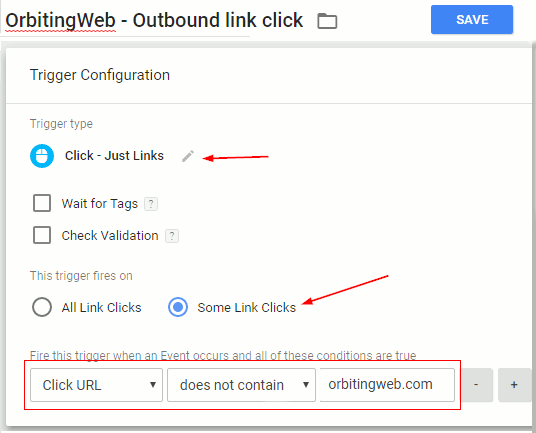
Step 6.) Once done, make sure to click the ‘Save‘ button, to save this trigger.
6: Create a Tag
Now we need to create a Tag that fires when the above trigger is activated.
In other words, the Tag will load when someone clicks on an outbound link on your site. It won’t load if someone clicks on an internal link.
To create a tag, do the following:
Step 1.) Click on the ‘Tags‘ link from the left panel.
Step 2.) Click ‘New‘ to create a new Tag.
Step 3.) Name your tag appropriately. Something like ‘Sitename.com – Track Outbound Links‘ should be good.
Step 4.) Click on the ‘Tag configuration‘ box and select ‘Universal Analytics‘ from the menu that appears.
Step 5.) Under ‘Tag Type‘ select ‘Event‘ from the drop down menu and add the following:
- Track Type: Event
- Category: Outbound Link Clicks
- Action: {{Click URL}}
- Label: {{Page URL}}
- Non Interaction Hit: False
Step 6.) Scroll down and under the ‘Google Analytics Settings‘, select the ‘Analytics tracking id‘ variable that you created earlier.
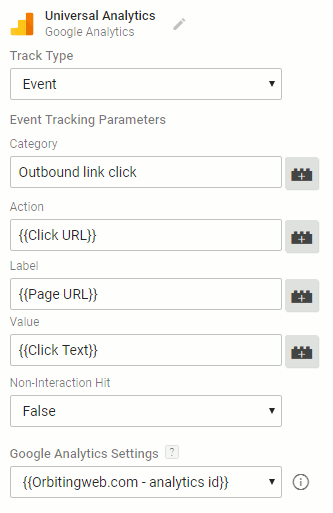
Step 7.) Scroll down to reach the ‘Triggering‘ menu. Click on it and from the ‘Choose a trigger‘ menu, select the trigger that you created earlier in point 5.
Step 8.) Click the ‘Save‘ button to save all changes.
7: Testing if everything works
To check if everything is working properly, do the following:
Step 1.) click on the ‘Preview‘ button. (Located on the top right hand corner, right next to the ‘Publish’ button.)
Step 2.) Now visit any page on your site (in the same browser) and you should be able to see the ‘Google Tag Manager’ console appear at the bottom of the page.
Step 3.) If you installed Google Analytics via Tag Manager, you should be able to see the ‘Analytics’ tag, under the ‘Tags Fired On This Page‘ sub-heading.
Step 4.) To check if the outbound links are being tracked, click on an outbound link on your page. Press the ‘CTRL‘ key while clicking so you stay in the same browser tab.
Step 5.) You should now be able to see a new link ‘gtm.linkclick‘ appear under ‘Summery‘. Click on this link and you should see your tag (the tag you created) under the ‘Tags Fired on This Event‘ heading.
Step 6.) Click on the ‘Variables‘ tab to see all the variables associated with this tag. You can use any of these variables in your tag configuration.
As as example, the ‘Click Text‘ variable contains the ‘Anchor text‘ of the link. If you want to see this information in Google Analytics, then you can add this when creating your Tag.
Go to ‘Tags‘ and click on the ‘Outbound link click‘ tag that you created. Under ‘Value‘ you can add the Click Text.

Another way to test if your tags are working is through Google Analytics Real time reports.
Here’s how to do that:
Step 1.) Login to your Google Analytics and click on ‘Real-Time’ from the left panel.
Step 2.) Now click on ‘Events‘ under ‘Real-Time‘.
Step 3.) Go to your site and click on a few outbound links.
Step 4.) Come back to Google Analytics Real-Time > Events and see if these events are being tracked.
8: Publishing your tag
The final step is to publish your tag.
Click on the ‘Submit‘ button (located top right next to ‘preview’ button). You will be asked to add a name and description. You can enter the name and details of your tag in the description. Once done, click the ‘Publish‘ button.
Your changes will be live once the publish button is clicked.
All your outbound link click stats would now be recorded in Google Analytics. You should be able to see these stats after a couple of days of installing the tag.
Note: Remember that you need to click Submit and Publish each time you make changes to any of your tags/triggers/variables. There is only a single Submit and Publish button for all changes.
Check under the ‘Versions’ tab to see all your live tags.
9: Checking your stats in Google Analytics
To see your stats do the following:
Step 1.) Login to Google Analytics.
Step 2.) Click on ‘Behaviour > Events > Overview‘ from the left panel.
Step 3.) Check to see if you are able to see your tag under the ‘Event Category’ section. It will be displayed with the same name (Outbound Link Clicks) you entered in the ‘Category’ field while creating your tag in point 6.
Step 4.) Click on the ‘Outbound Link Clicks’ Event Category to see details reports.
Step 5.) Click on ‘Event Action’ to see the outbound link URL and ‘Event Label’ to see which page on your site the link was on along with the anchor text of the link.
Step 6.) You can view both reports on the same page by clicking on ‘Secondary dimension’ and then selecting ‘Event Lable’. Now your outbound link will be displayed along with your Page URL. The number of events represent the total number of clicks.

