How to speed up and optimize a WordPress website

Patient Tools

Read, save, and share this guide

Use these quick tools to make this medical article easier to read, print, save, or share with a family member.

Article Summary

How to speed up and optimize a WordPress website/WordPress is one of the most widespread and easily customizable CMSs. However, it's pretty slow in the default configuration, especially, if the site has a lot of visitors and heavy content, or uses a complex theme. Moreover, since 2010 Google has used page load times as a factor in its search ranking algorithms. Luckily, the flexibility of...

Educational health guideWritten for patient understanding and clinical awareness.
Reviewed content workflowUse writer and reviewer profiles for stronger trust.
Emergency safety firstUrgent warning signs are highlighted below.

Seek urgent medical care if you notice

These warning signs are general safety guidance. Local emergency numbers and clinical judgment should always come first.

  • Severe symptoms, breathing difficulty, fainting, confusion, or rapidly worsening illness.
  • New weakness, severe pain, high fever, or symptoms after a serious injury.
  • Any symptom that feels urgent, unusual, or unsafe for the patient.
1

Emergency now

Use emergency care for severe, sudden, rapidly worsening, or life-threatening symptoms.

2

See a doctor

Book a professional medical evaluation if symptoms persist, worsen, recur often, affect daily activities, or occur in a high-risk patient.

3

Learn safely

Use this article to understand possible causes, tests, treatment options, prevention, and questions to ask your clinician.

How to speed up and optimize a WordPress website/WordPress is one of the most widespread and easily customizable CMSs. However, it’s pretty slow in the default configuration, especially, if the site has a lot of visitors and heavy content, or uses a complex theme. Moreover, since 2010 Google has used page load times as a factor in its search ranking algorithms.
Luckily, the flexibility of this CMS allows many methods to speed it up and lower the loading time of a website. You can check your website using online tools such as the ones below to track the website speed results after each step:
  • Google Page Speed
  • GTmetrix
  • Pingdom
All these tools will provide insight on how your website loads and which parts of the website take more time to load than others (i.e. which need to be optimized). The Google Page Speed and GTmetrix tools are better for beginners since they show helpful tips on how the website can be optimized while Pingdom and WebPagetest have a more technical approach and will need more website development experience to understand.
Below we will look at some ways you can optimize a WordPress website. We recommend following these tips when building your website.NOTE: Make sure to create a backup of your website before making any changes. If the website was installed using the Softaculous script installer, feel free to refer to this guide as well (step #4 – Backup software).

Choosing a theme

A theme plays a key role in a website load speed. If you plan to create a busy blog, we recommend doing the research and testing to find the lightest and the most optimized theme.

The main and the most important rule about choosing a theme for the WordPress website is that WordPress theme should correspond to the content of your website. You should define the topic of your website and the content first, and only then choose a theme which will suit your needs.

Many WordPress themes are customizable and allow WordPress users to tweak multiple theme options to create the desired look for their websites. However, these options, if they are coded improperly, can create issues with changing the theme to another one.

Some WordPress themes which are quite attractive at first glance can actually make your website load more slowly than it should. Below are several useful tips to help you select the best theme for your WordPress website:

1. The simpler, the better.
2. Choose a theme with a responsive design.
3. Try to choose only highly-rated plugins compatible with your version of WordPress
4. Pay attention to the presence of page builders which come with the theme.
5. Consider SEO friendliness of the theme.

Specialized threads on WordPress forums are the best places to check for that. Here are two examples

Also, most theme developers provide sample websites that show how the theme works and displays. Make sure to test these websites by using tools like Google Page Speed and GTmetrix when possible.

Optimizing images

A number of plugins for reducing image size exists on the web, for example, EWWW Image Optimizer, WP Smush.it, and so on. They all have different features and allow you to find the configuration you need. We recommend using the EWWW Image Optimizer plugin.

NOTE: It requires exec() function, follow the instructions here to get it activated.

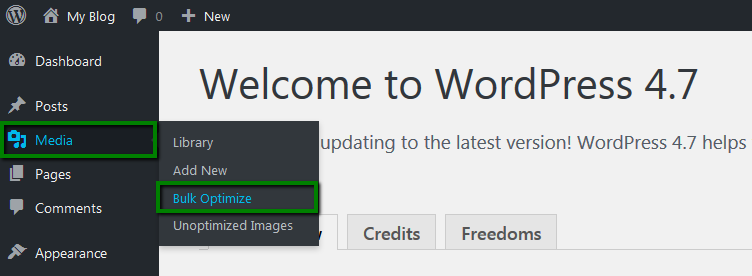
Once the plugin is installed and activated, you need to go to Media >> Bulk Optimize to optimize your images:
How to speed up and optimize a WordPress website

You will have an option to scan and optimize all images in Media library in bulk using the Scan for unoptimized images option:

How to speed up and optimize a WordPress website

Select Start optimizing after the scan is completed:

How to speed up and optimize a WordPress website

NOTE 1: The optimization procedure requires considerable resources, so it’s possible that it will hit the CPU resource limit temporarily.

NOTE 2: The plugin allows you to determine the degree of image compression you want to use. For example, if you own a photo blog, note that well-compressed pictures will lose quality.

You can also set the plugin to conduct scheduled optimization in Advanced Settings. Scheduled optimization does not include Media Library images because they are either already optimized or will be optimized on upload.

Using a plugin to optimize the images would be the fastest solution but, sadly, plugins do not provide the best image compression. For the best results, we would like to advise you to use third-party tools such as compressor.io or tinypng.com. This method would require some time to compress images manually but it will provide the best results.2

Compressing files

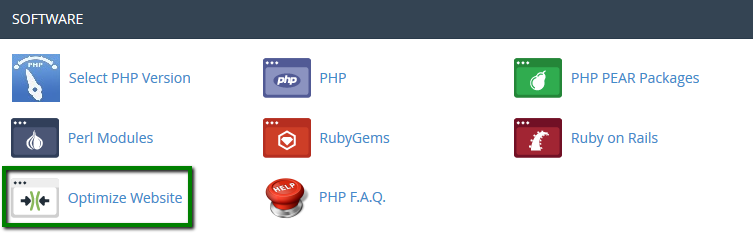
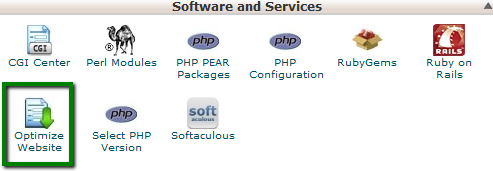
cPanel includes the Optimize Website function. It uses Apache’s mod_deflate to compress content before sending it to the visitor’s browser.

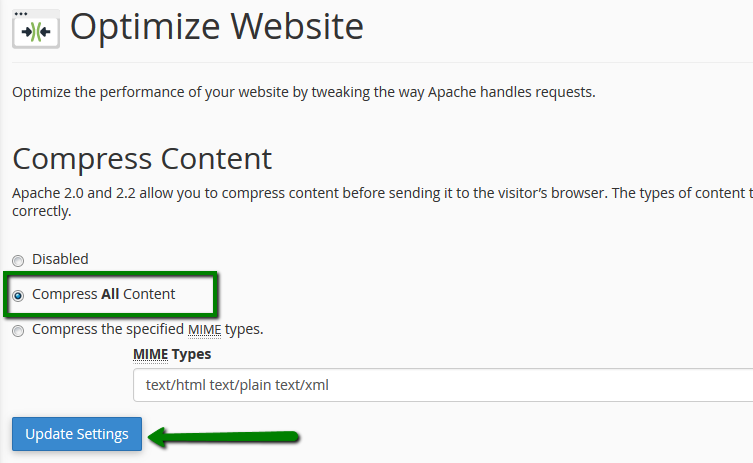
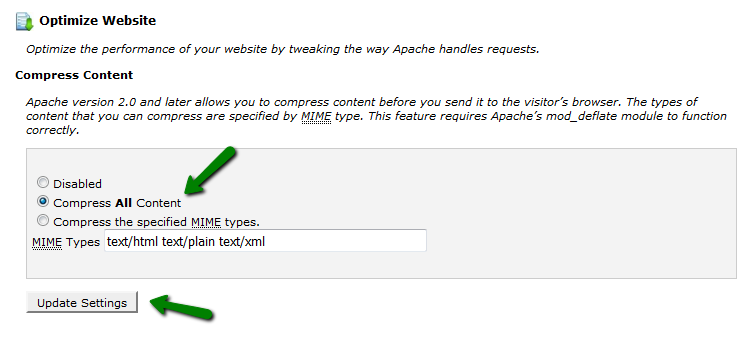
Gzip is the most popular and effective compression method today. If gzip compression is enabled for website content, it generally reduces the response size by about 70%. To gzip your website components, log in to your cPanel >> go to the Software section >> the Optimize Website menu.

For cPanel Basic Theme:

How to speed up and optimize a WordPress website

Here you need to select Compress All Content and click on Update Settings.
How to speed up and optimize a WordPress website

For cPanel Retro Theme:

How to speed up and optimize a WordPress website

Select Compress All Content and click on Update Settings.
How to speed up and optimize a WordPress website
Using caching plugins

A number of WP plugins are in use, and the vast majority of them drastically improve the page load time.

W3 Total CacheWP Super Cache are the most popular cashing plugins as well as OPcache and Autoptimize.
W3TC utilizes multiple techniques to improve performance, including:
  • page caching
  • HTML, CSS, and javascript minification
  • gzip compression
  • CDN (Content Distribution Network) support
  • browser caching via ETags

Below are the guidelines for its initial setup and tweaking.

To configure the plugin, go to Plugins >> Installed Plugins >> find W3 Total Cache >> Settings:
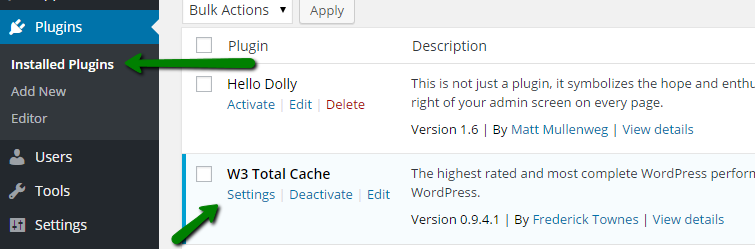
How to speed up and optimize a WordPress website

NOTE: If you are a Shared hosting account user, remember that all available caches should not be enabled at the same time – avoid choosing Toggle all caching types on or off (at once). The reason for this is that if Object caching and Database caching are on, they will trigger resource usage spikes without any improvement of the page speed. These caches can be enabled only if your WordPress website is hosted on a VPS or Dedicated server.

Scroll down the page and check Enable next to the following options:

1. Page Cache
2. Minify
3. Browser Cache (more details on browser cache setup in W3 Total Cache can be found in the next paragraph)

Then click on the Save All Settings button.

If you wish to get familiar with all configuration options of W3 Total Cache plugin, you may find them listed in this article.

WP OPcache resets all cache after upgrading. It reduces website load by storing the compiled PHP code in the memory. OPCache is bundled with PHP starting from 5.5 and supports both memory and file caching. The plugin improves PHP performance by storing script bytecode in shared memory.
To flush OPcache, click on the Flush PHP OPcache button. The notification about flushed cache will appear:
How to speed up and optimize a WordPress website
Navigate to the Settings >> WP OPcache to check additional options the plugin provides, such as General Settings and Statistics.

In the Statistics menu, you can check memory status, scrips, and configuration.
General Settings provides you with the option to flush cache automatically, precompile PHP files or remove the OPcache button from the top navigation menu bar.
You can flush PHP cache from this menu as well.

After choosing a needed option, click on the Save Changes button to apply the changes:
How to speed up and optimize a WordPress website
Autoptimize plugin concatenates all scripts and styles, minifies and compresses them, adds expires headers, caches them, and moves styles to the page head, and scripts (optionally) to the footer.
In order to clear cache, mouse over the Autoptimize option on the top menu and click on the Delete Cache button:

How to speed up and optimize a WordPress website

Using browser cache

The Expires header is a way to specify a period of storing/keeping/caching the static content of the website (CSS, Javascript, images, etc.) in the visitors’ browsers. This will significantly cut down the website load time for your regular visitors.
A convenient way to enable browser caching is to install WordPress Total Cache plugin and enable browser cache inside WordPress admin dashboard >> Performance menu >> General Settings:
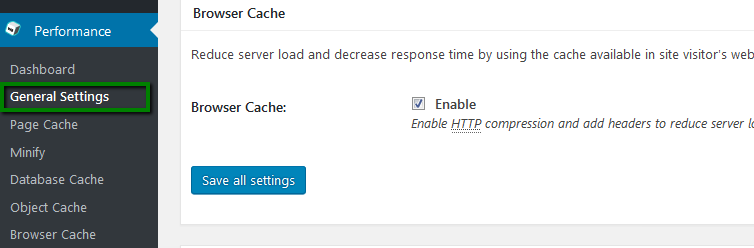
How to speed up and optimize a WordPress website

Then you will be able to perform fine-tuning of browser cache for the static content of your website in the WordPress admin dashboard >> Performance menu >> Browser Cache section:
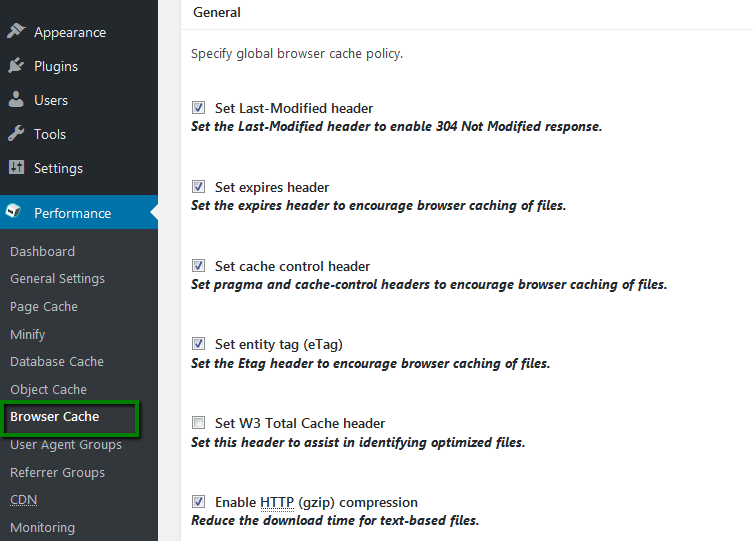
How to speed up and optimize a WordPress website

If you do not have W3 Total Cache installed on your website, you can enable browser cache with the help of the Browser Caching with .htaccess plugin.

Alternatively, you can just copy and paste the following code in your root .htaccess file:\

ExpiresActive on

ExpiresByType image/jpg “access plus 60 days”
ExpiresByType image/png “access plus 60 days”
ExpiresByType image/gif “access plus 60 days”
ExpiresByType image/jpeg “access plus 60 days”

ExpiresByType text/css “access plus 2 weeks”
ExpiresByType image/x-icon “access plus 2 weeks”

ExpiresByType application/pdf “access plus 1 month”
ExpiresByType audio/x-wav “access plus 1 month”
ExpiresByType audio/mpeg “access plus 1 month”
ExpiresByType video/mpeg “access plus 1 month”
ExpiresByType video/mp4 “access plus 1 month”
ExpiresByType video/quicktime “access plus 1 month”
ExpiresByType video/x-ms-wmv “access plus 1 month”
ExpiresByType application/x-shockwave-flash “access 1 month”

ExpiresByType text/javascript “access plus 2 weeks”
ExpiresByType application/x-javascript “access plus 2 weeks”
ExpiresByType application/javascript “access plus 2 weeks”

The values can be changed according to your specific requirements.

Homepage optimization

The first thing people see on the website is the home page. It is very important to pay attention to its proper optimization.

The fewer HTTP requests are performed by the browser to load your website content, the faster your pages load for the visitors. In other words, the media content of the page, WordPress theme, and plugins should be fetched by visitors’ browser using as few requests as possible.

The WP Asset Clean Up plugin for WordPress can help you reduce the number of HTTP requests for your website, making your website pages load smoothly and quickly. The WP Asset Clean Up plugin prevents unnecessary styles and scripts from loading on your pages. It forces assets to load only on the pages where they are actually required. It also minimizes the HTML code of the actual page.

The JavaScript to Footer plugin can also be used to move JavaScript code to the page footer, so scripts don’t increase the initial load time of the page.

General recommendations:

1. Do not overload the page with widgets such as social media sharing buttons. They are needed only in blog posts.
2. It is better to display excerpts on the homepage, not full posts.
3. The homepage should not show too many posts. Consider limiting it to five posts

Eliminate render-blocking JavaScript and CSS
While checking websites using Google Page Speed, you may encounter one or more notifications with a red exclamation mark saying “Eliminate render-blocking Javascript and CSS in above-the-fold content“. This means that none of the above-the-fold content on the page could be rendered without waiting for the resources to load.

This can be resolved by enabling additional Minify settings of the W3 Total Cache plugin.

To do so, you will need to access the General Settings tab of the plugin and set the Minify mode to Manual, like so:

How to speed up and optimize a WordPress website

Before you continue, make sure that the JS minify settings fields in the Minify menu are set to use the following settings:

How to speed up and optimize a WordPress website

Once done, you will need to add the corresponding JavaScript URLs provided by Google PageSpeed in the JS file management field, like so:

How to speed up and optimize a WordPress website

Perform the same steps for the CSS file management field filling in the CSS URLs on the same page:
How to speed up and optimize a WordPress website
That should be it! The notice “Eliminate render-blocking Javascript and CSS in above-the-fold content” shouldn’t appear if the steps above were completed in order.
Autoptimize plugin minifies the HTML code itself, making your page lightweight.
The plugin is used for JS/CSS optimization. Also, there are advanced options available that allow you to tailor Autoptimize to your website’s specific needs.
Autoptimize is compatible with WP Super Cache which provides a more developed rewrite functionality. Go to the Autoptimize Settings to find the option for website optimization:
  • JavaScript Options can be used for combining JavaScript files for your WordPress website to one file.
  • CSS Options allow you to encode small images into your CSS files, put some CSS in the HTML file, etc.
  • HTML Options let you manage HTML and opt to keep comments in place.
  • CDN Options is useful if you are using CDN for some files. Add them to the CDN Base URL in this case.

Using Images tab, you can optimize images by compressing them.
Extra and Optimize More provide you with the additional settings and services that can be used for website optimization.

In order to check advanced options, click on Show advanced settings button:
How to speed up and optimize a WordPress website


In the appeared menu, you will see the more detailed options for website optimization:

How to speed up and optimize a WordPress website

After choosing the options needed, scroll down to the bottom of the page and press the Save Changes and Empty Cache button to save the modifications:

How to speed up and optimize a WordPress website

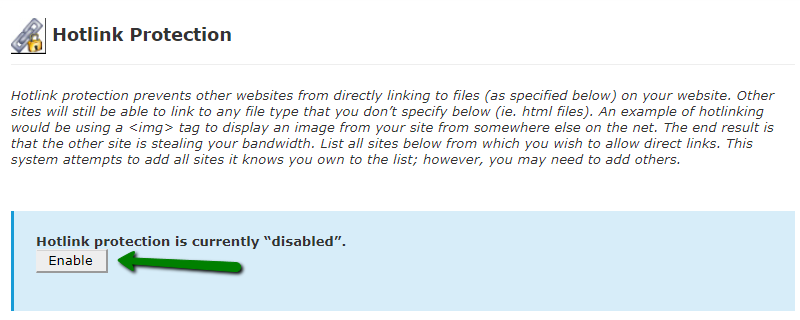
Enabling hotlink protection

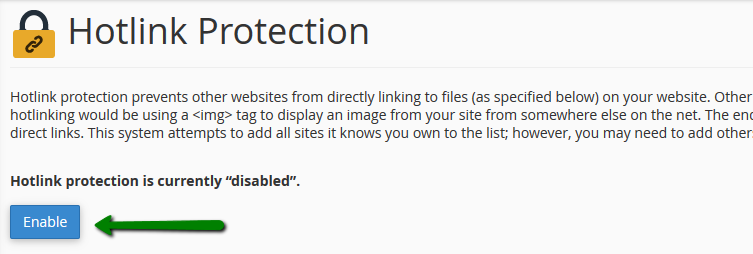
If a direct link to an image hosted by you is placed on another website, it will consume your website resources, as requests to fetch the image will go to your server.
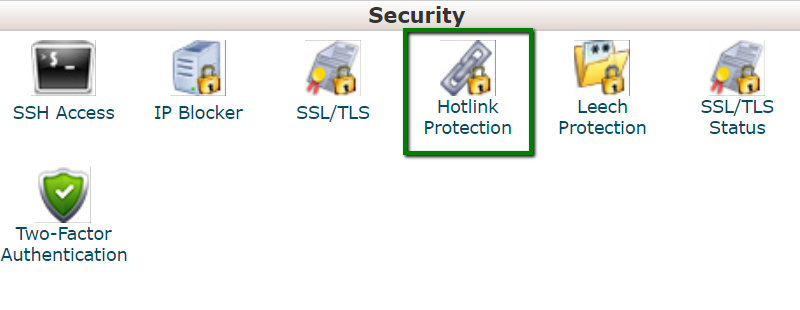
Blocking such direct links is the solution. The best option is to use cPanel >> Hotlink Protection function:

For cPanel Basic Theme:

How to speed up and optimize a WordPress website

How to speed up and optimize a WordPress website

For cPanel Retro Theme:

How to speed up and optimize a WordPress website

How to speed up and optimize a WordPress website

Optimizing the database

Optimizing the database may also be useful for a WordPress blog. Currently, WordPress has 11 core tables. Most WordPress websites have even more tables because plugins and some themes save additional settings and other data in the WordPress database.

To optimize your WordPress database, follow our database optimization guide. These steps will not allow unnecessary database queries to slow down your website. You can also use specialized WordPress plugins such as:

WP-Optimize
Optimize Database after Deleting Revisions
WP-Sweep
WP-DB Manager

WP-Sweep uses proper WordPress delete functions as much as possible instead of running direct delete MySQL queries, whereas the WP-Optimize plugin uses direct delete SQL queries which can leave orphaned data left behind.

We would also like to remind you to back up the database and/or the whole website before making any major adjustments, especially to third-party plugins.
Estimating your WordPress website performance

Plugins allow you to add functionality to your WordPress website functionality and include a variety of custom options for you and your website visitors. The side effect is that some plugins may slow down your website by consuming the CPU and I/O resources allotted for your website.

To optimize your website efficiently, you need to investigate how many resources your plugins use. To check your plugins, you can use P3 (Plugin Performance Profiler) plugin for WordPress. When scanning your website with this plugin, you’ll see a diagram displaying how each plugin contributes to the website’s loading time and the relative time each plugin takes to load. It will allow you to determine if any plugins make your website load significantly slower.

There is another useful plugin for WordPress – Plugin Organizer. It allows you to disable plugins selectively and rearrange the order your plugins are loaded. It can also improve your website performance.

Finally, once all these measures are implemented, you may check the optimization level of your WordPress website with GTmetrix plugin for WordPress and enjoy the scores you earned!

Patient safety assistant

Check your symptom safely

Hi, I am RX Symptom Navigator. I can help you understand what to read next and what warning signs need care.
Warning: Do not use this in emergencies, pregnancy, severe illness, or as a substitute for a doctor. For children or teens, use with a parent/guardian and clinician.
A rural-friendly guide: warning signs, when to see a doctor, related articles, tests to discuss, and OTC safety education.
1 Symptom 2 Severity 3 Safe guidance
First safety question

Is there chest pain, breathing trouble, fainting, confusion, severe bleeding, stroke-like weakness, severe injury, or pregnancy danger sign?

Choose quickly

Browse by body area
Start here: Write or select a symptom. The guide will show warning signs, doctor guidance, diagnostic tests to discuss, OTC safety education, and related RX articles.

Important: This tool is educational only. It cannot diagnose, treat, or replace a doctor. OTC information is not a prescription. In an emergency, contact local emergency services or go to the nearest hospital.

Doctor visit helper

Prepare before seeing a doctor

A simple rural-patient checklist to help you explain symptoms clearly, ask better questions, and avoid unsafe self-treatment.

Safety note: This is not a prescription or diagnosis. For severe symptoms, pregnancy danger signs, children with serious illness, chest pain, breathing difficulty, stroke-like weakness, or major injury, seek urgent care.

Which doctor may help?

Start with a registered doctor or the nearest qualified health center.

What to tell the doctor

  • Write when the problem started and how it changed.
  • Bring old prescriptions, investigation reports, and current medicines.
  • Write allergies, pregnancy status, diabetes, kidney/liver disease, and major past illnesses.
  • Bring one family member if the patient is weak, elderly, confused, or a child.

Questions to ask

  • What is the most likely cause of my symptoms?
  • Which danger signs mean I should go to hospital quickly?
  • Which tests are necessary now, and which can wait?
  • How should I take medicines safely and what side effects should I watch for?
  • When should I come for follow-up?

Tests to discuss

  • Vital signs: temperature, pulse, blood pressure, oxygen saturation
  • Basic physical examination by a clinician
  • CBC, urine test, blood sugar, or imaging only when clinically needed

Avoid these mistakes

  • Do not use antibiotics, steroid tablets/injections, or strong painkillers without proper medical advice.
  • Do not hide pregnancy, kidney disease, ulcer, allergy, or blood thinner use.
  • Do not delay emergency care when danger signs are present.

Medicine safety and first-aid guide

This section is for patient education only. It does not replace a doctor, pharmacist, or emergency care.

Safe first steps

  • Rest, drink safe water, and observe symptoms carefully.
  • Keep a written note of symptoms, duration, temperature, medicines already taken, and allergy history.
  • Seek medical care quickly if symptoms are severe, worsening, or unusual for the patient.

OTC medicine safety

  • For mild pain or fever, ask a registered pharmacist or doctor before using common over-the-counter pain/fever medicines.
  • Do not combine multiple pain medicines without advice, especially if you have kidney disease, liver disease, stomach ulcer, asthma, pregnancy, or take blood thinners.
  • Do not give adult medicines to children unless a qualified clinician advises it.

Avoid these mistakes

  • Do not start antibiotics without a proper medical decision.
  • Do not use steroid tablets or injections casually for quick relief.
  • Do not delay emergency care because of home remedies.

Get urgent help if

  • Severe symptoms, confusion, fainting, breathing difficulty, chest pain, severe dehydration, or sudden weakness need urgent medical care.
Medicine names, dose, and timing must be decided by a qualified clinician or pharmacist after checking age, pregnancy, allergy, other diseases, and current medicines.

For rural patients and family caregivers

Patient health record and symptom diary

Write your symptoms, medicines already taken, test results, and questions before visiting a doctor. This note stays on your device unless you print or copy it.

Doctor to discuss: Doctor / qualified healthcare provider
Tests to discuss with doctor
  • Basic vital signs: temperature, pulse, blood pressure, oxygen level if needed
  • Relevant blood, urine, imaging, or specialist tests only after clinical assessment
Questions to ask
  • What is the most likely cause of my symptoms?
  • Which warning signs mean I should go to emergency care?
  • Which tests are really needed now?
  • Which medicines are safe for my age, pregnancy status, allergy, kidney/liver/stomach condition, and current medicines?

Emergency warning signs such as chest pain, severe breathing difficulty, sudden weakness, confusion, severe dehydration, major injury, or loss of bladder/bowel control need urgent medical care. Do not wait for online information.

Safe pathway to proper treatment

Patient care roadmap

Use this simple roadmap to understand the next safe steps. It is educational and does not replace examination by a doctor.

Go to emergency care if you notice:
  • Severe or rapidly worsening symptoms
  • Breathing difficulty, chest pain, fainting, confusion, severe weakness, major injury, or severe dehydration
Doctor / service to discuss: Qualified healthcare provider; specialist depends on symptoms and examination.
  1. Step 1

    Check danger signs first

    If danger signs are present, seek emergency care and do not wait for online information.

  2. Step 2

    Record the symptom story

    Write when symptoms started, severity, medicines already taken, allergies, pregnancy status, and test results.

  3. Step 3

    Visit a qualified clinician

    A doctor, nurse, or qualified healthcare provider can examine you and decide which tests or treatment are needed.

  4. Step 4

    Do only useful tests

    Do tests after clinical assessment. Avoid unnecessary tests, random antibiotics, or repeated medicines without diagnosis.

  5. Step 5

    Follow up and return early if worse

    If symptoms worsen, new warning signs appear, or treatment is not helping, return for review quickly.

Rural patient practical tips
  • Take a written symptom diary and all previous prescriptions/test reports.
  • Do not hide medicines already taken, even herbal or over-the-counter medicines.
  • Ask which warning signs mean urgent referral to hospital.

This roadmap is for education. A real diagnosis and treatment plan requires history, examination, and clinical judgment.

RX Patient Help

Ask a health question safely

Write your symptom story. A health professional or site editor can review it before any answer is prepared. This box is not for emergency care.

Emergency first: Severe chest pain, breathing trouble, unconsciousness, stroke signs, severe injury, heavy bleeding, or rapidly worsening symptoms need urgent local medical care now.

Frequently Asked Questions

Is this article a replacement for a doctor?

No. It is educational content only. Patients should consult a qualified clinician for diagnosis and treatment.

When should I seek urgent care?

Seek urgent care for severe symptoms, rapidly worsening condition, breathing difficulty, severe pain, neurological changes, or any emergency warning sign.

References

Add references, clinical guidelines, textbooks, journal articles, or trusted medical sources here. You can edit this area from the RX Article Professional Blocks panel.